How do I set up my Telstra Watch Plan?
Learn how to get a Telstra Watch Plan and how to set it up in your Watch app on your iPhone.
Take me to
Getting a Telstra Watch Plan is a little bit different than getting a mobile plan – it all happens on your iPhone, using its Watch app.
It’s also different if you’re setting up a new Apple Watch or connecting a watch a family member is already using.
Set up instructions
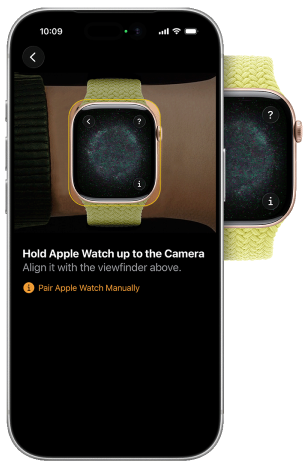
- Pair your Apple Watch: bring the Apple Watch you’re setting up close to your iPhone and wait for the pairing screen to show up.
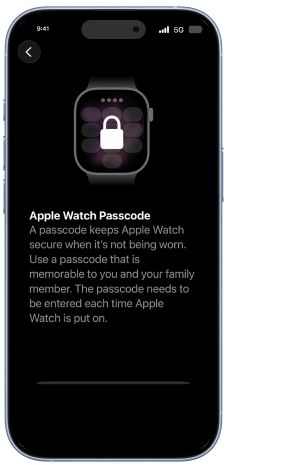
- Create a watch passcode: you’ll need to set a passcode for the watch to help keep it secure.
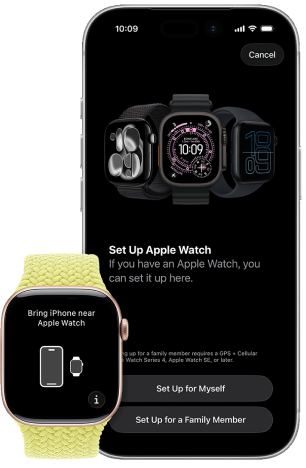
- Select Set Up for a Family Member: after pairing the Watch, you must select Set up for a Family member to ensure the Telstra Watch Plan is available to you.
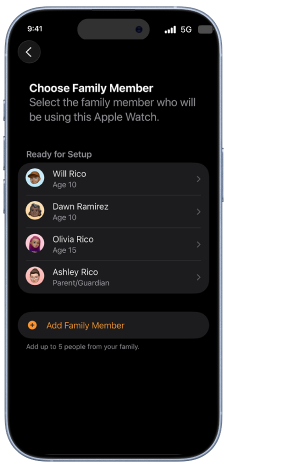
- Choose a family member: tap the person you’re setting this Apple Watch up for or Add Family Member.
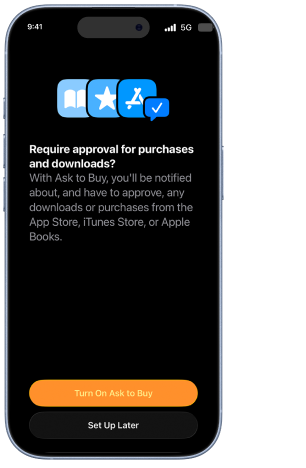
- Turn on Ask to Buy: This means you’ll need to approve any downloads or purchases made on the Apple Watch.
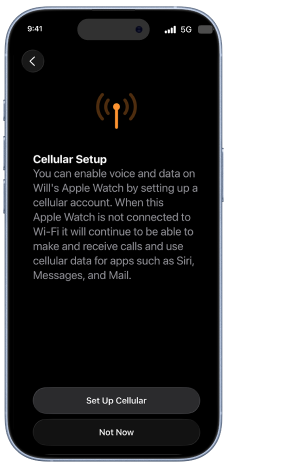
- Select Set Up Cellular: This is where you’ll add your Telstra Watch Plan. You’ll need to have an eligible Telstra Upfront Mobile Plan and be the Account Owner to see the plan option.
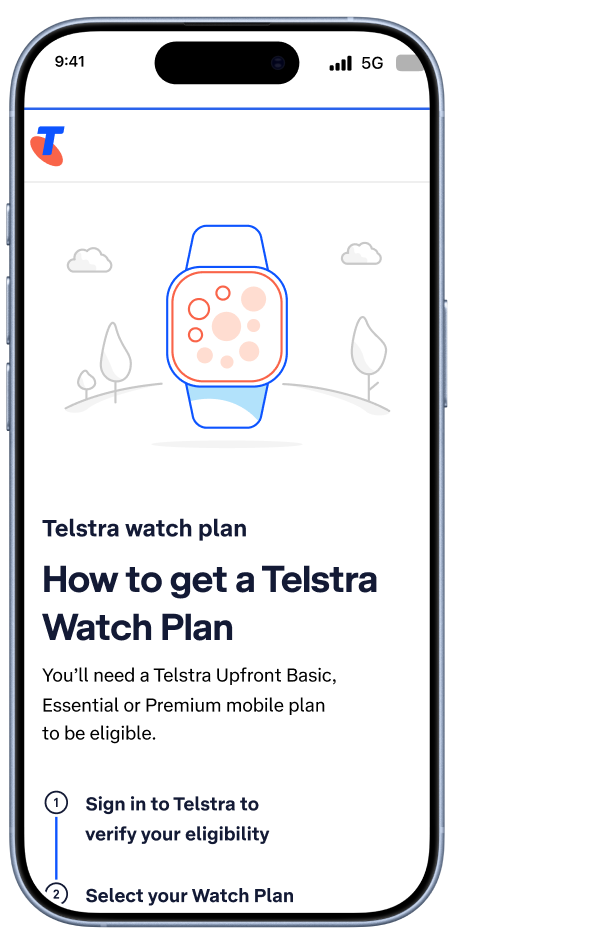
- On the Telstra Watch Plan screen, select Next: You’ll be sent to us to set up the plan. Sign in with your Telstra ID.
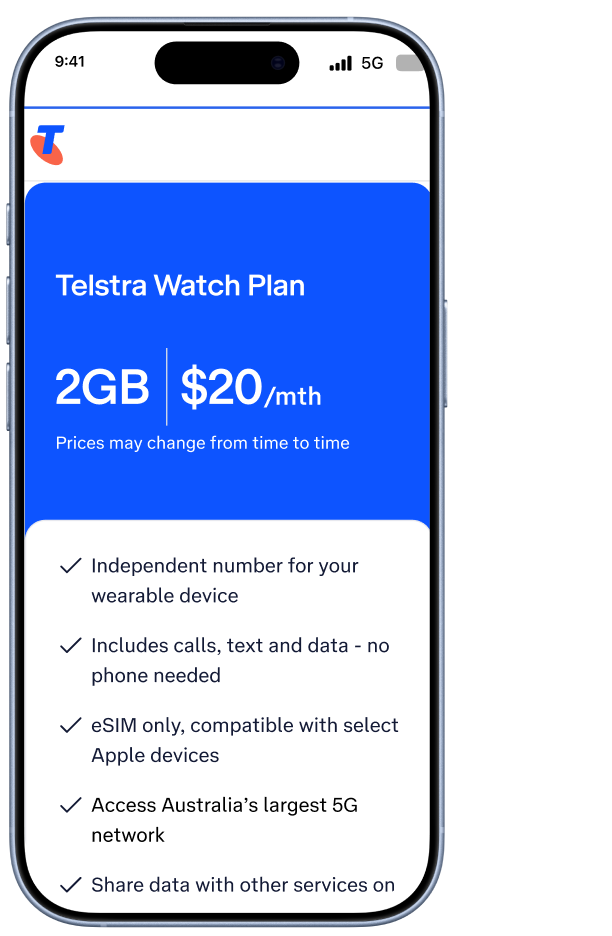
- Select the Telstra Watch Plan: Have a look over the plan details and then Select Watch Plan.
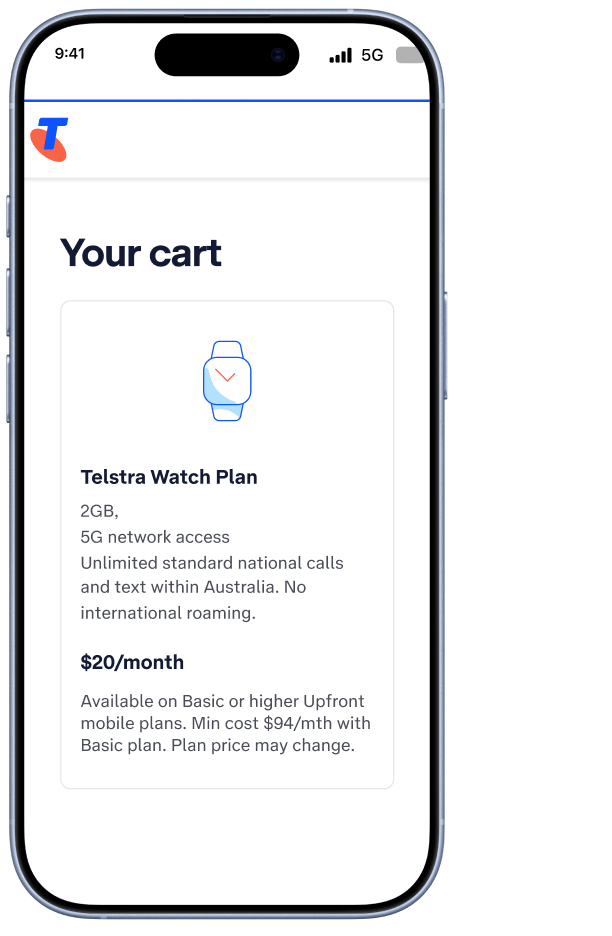
- Go to your cart: Follow the prompts to continue.
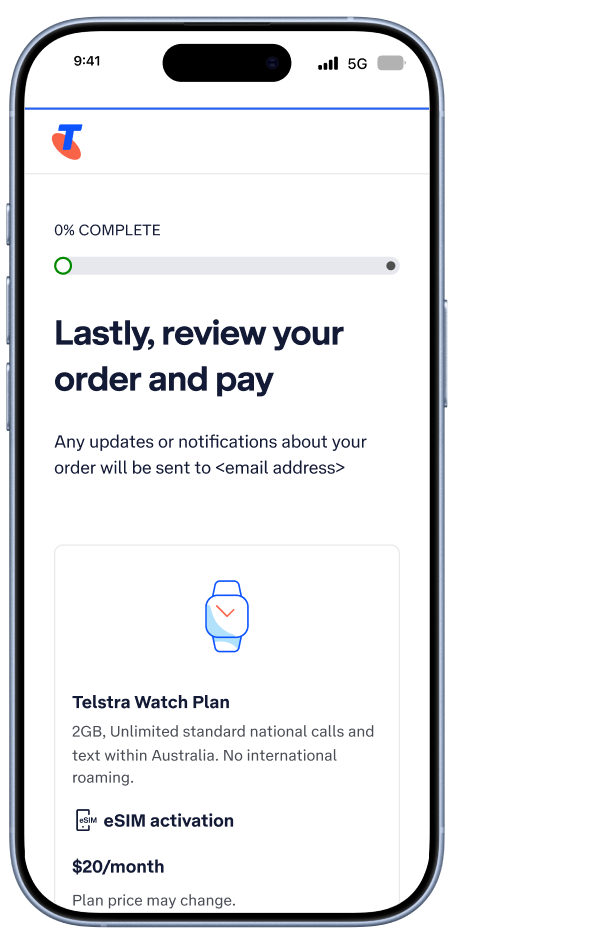
- Review your order: Then make the first payment to confirm your order.
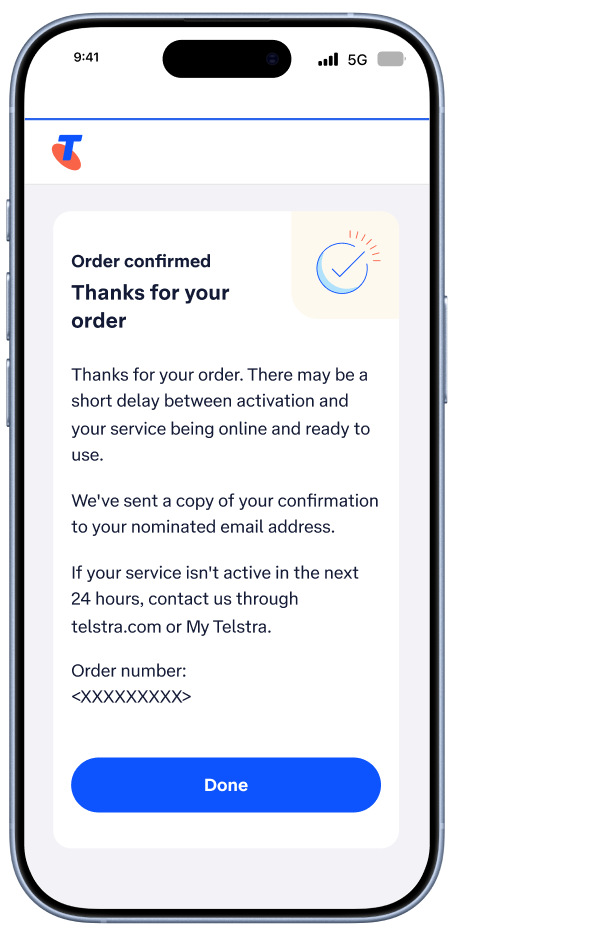
- Tap Done: The Telstra Watch Plan will activate soon. You’ll be sent back to your iPhone’s Watch app to finish up.
- Head to the Apple Watch’s settings: In the Watch app on your iPhone, tap My Watch then All Watches and select the watch you’re adding a cellular plan to. Make sure this Watch was setup as a Family Watch.
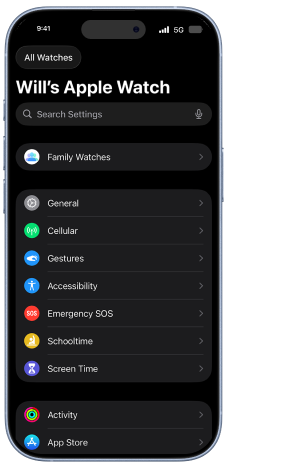
- Tap Cellular: Then tap Set Up Cellular. You’ll need to have an eligible Telstra Upfront Mobile Plan, your iPhone and be the Account Owner to see the plan option.
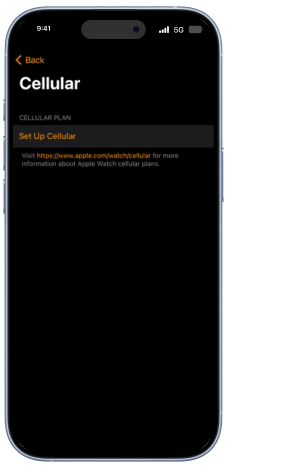
- On the Telstra Watch Plan screen, select Next: You’ll be sent to us to set up the plan. Sign in with your Telstra ID.
- Select the Telstra Watch Plan: Have a look over the plan details and then Select Watch Plan.
- Go to your cart: Follow the prompts to continue.
- Review your order: Then make the first payment to confirm your order.
- Tap Done: The Telstra Watch Plan will activate soon.
Frequently asked questions
You may not see the Telstra Watch Plan as an option in your Watch app if:
- you didn’t select Set up for Family Member during your Apple Watch setup
- you aren’t the Account owner
- you don’t have compatible devices
- An Apple Watch Series 6 or later with cellular, or Apple Watch SE with cellular, with watchOS 26.5 or later.
- iPhone 11 or later (iOS 14 or later)
If you get a new Apple Watch, you can transfer your Telstra Watch Plan from your old watch to your new one:
- Turn on your new Apple Watch
- Pair your Apple Watch with your iPhone
- Create a watch passcode
- Select Set Up for a Family Member
- Choose a family member or Add Family Member
- Select your preference for purchase and download approvals
- Select Set Up Cellular
- On the Telstra Watch Plan screen, select Next
- Sign in with your Telstra ID
- Select Link an Existing Wearable Plan on the Set Up a Number for Your Watch screen
- Follow the steps on the Link an Existing Number screen
- Confirm and review your now linked number
- Enjoy your Watch Plan.
You may be able to have a maximum of 5 Watch Plans per eligible account. Credit limits apply.
The Telstra Watch Plan provides a unique, standalone mobile number to use with Apple Watch so it can make and receive calls and SMS, without being tethered to a smartphone.
Telstra One Number lets you share your existing mobile phone number with a smartwatch via your smartphone.
Put another way, the Telstra Watch Plan is just for watches. Telstra One Number is phone and watch combos that share a mobile number.
| Telstra One Number | Telstra Watch Plan | |
|---|---|---|
| How it works | Mirrors your phone | Works independently |
| Mobile number | Same as your phone | Own mobile number |
| Calls & texts | Shared with phone | Separate calls & texts |
| Data | From your phone plan | Included with the plan |
| Best for | Everyday phone users | Phone-free connectivity |
Contact us to cancel your Telstra One Number service and check that you are eligible to get the Watch Plan.
Rather get in touch? Let's get you connected
Sign in to the My Telstra app
View your services, pay your bill, troubleshoot tech issues, contact us via messaging and much more.
Chat with us
If you don't use My Telstra, you can still chat with us online.
In store
Find your nearest Telstra store or Wi-Fi hotspot.